



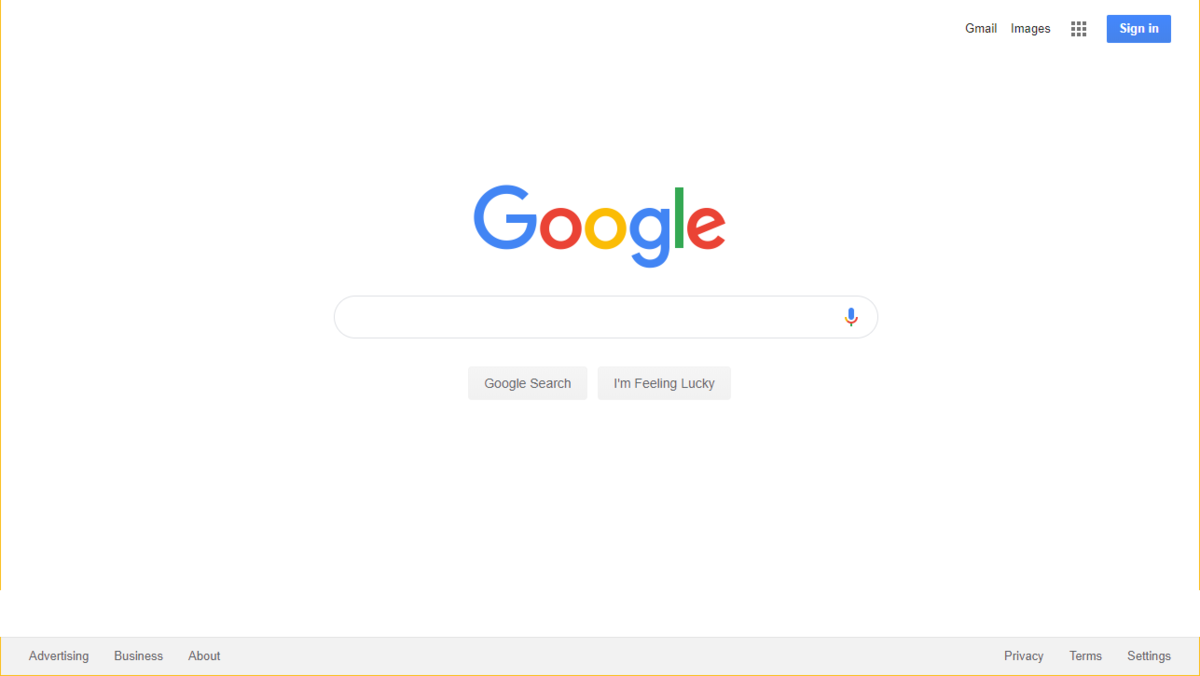
You may have noticed that a new tab of Chrome shows a search box in the center of the page. However, this is a ‘fake’ search bar and redirects the user to the address bar. Where they can find anything they want. Another thing you will notice is that the search field disappears when another search engine set as the default. However, there is a way to activate that ‘fake’ search field, and here’s how you can do it.
Follow these steps to activate a Google search box in a new tab.
Google Chrome has a flag in the experimental flag section that can turn a fake search box into an actual search field.
- Type on chrome: // flags / in the address bar

- See Zero suggestions in actual search box on new tab page for option.

- Choose the option ‘Activate’ from the dropdown menu

You need to open Google Chrome and type chrome / // flags / in the search field and press enter. It will open the ‘Experiment’ flag page in the browser. Press Ctrl + F here and type zero suggestion in the actual search box on the new tab page.
Once found, tap on the dropdown menu next to the option and select the ‘Activate’ option and then a popup will appear at the bottom of the browser asking the browser to reload. Click on it and then go to a new tab; the center search box will now start working as a regular search box.
For those unaware, Google put this center search box as an experimental feature in Chrome’s new tab in 2012 and has been there ever since. The primary purpose of the box was to redirect the user to the address bar where they can search for anything they want.
SHARE